UTRGV passwords expire every 365 days.
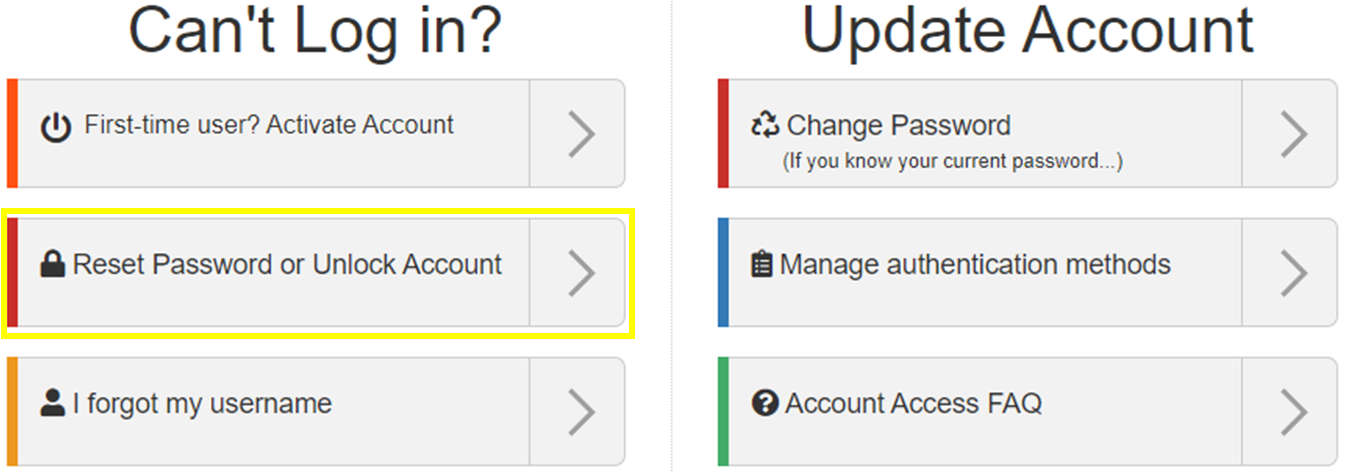
You can reset your password or unlock your account using the Account Self‑Service website: myaccount.utrgv.edu. Follow the video or the text instructions below.
Step 1: Open
the Account Self‑Service Website
Go to myaccount.utrgv.edu
(Account Self‑Service website) and select Reset Password or Unlock Account.
Step 2: Enter Your Email Address
Enter your UTRGV email address and the CAPTCHA characters, then select Next.
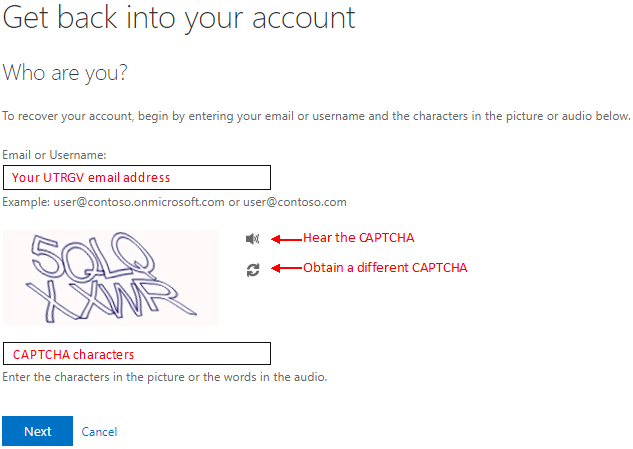
If you have difficulty completing the CAPTCHA, contact the IT Service Desk for assistance.
Step 3: Choose an Account Recovery Option
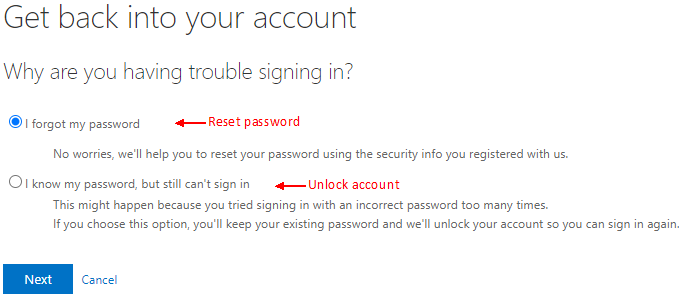
Select the appropriate option, then select Next:
- I forgot my password (reset password)
- I know my password, but still can’t sign in (unlock account)
Step 4: Verify Your Identity
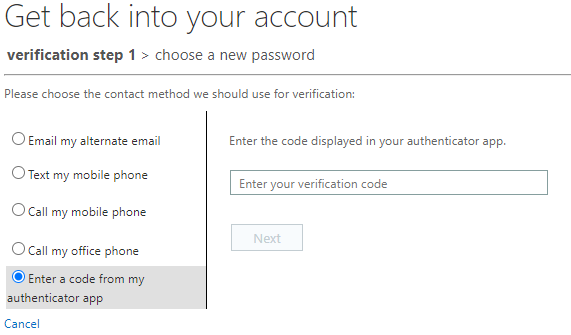
Select your preferred verification method and complete the prompts shown on the screen.
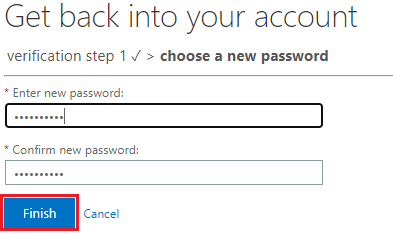
Step 5: Create a New Password (If Applicable)
If you selected “I forgot my password”, enter your new password twice, then select Next.
UTRGV Password Requirements
Your new password must meet the following requirements:
- Must be at least 10 characters
- Cannot include any name (yours or someone else’s)
- Cannot reuse previous passwords
- Must meet 3 of the following 4 criteria:
- At least 1 uppercase letter (A–Z)
- At least 1 lowercase letter (a–z)
- At least 1 number (0–9)
- At least 1 special character
Allowed special characters:
' ~ ! # $ ^ ( ) _ + - = { } | [ ] \ : ; > ? , . /
Example password: S+rOngP4sswOrd
Note: If you receive an “internal server error,” try creating a completely different password or use a private/incognito browser window.
Account Unlock Confirmation
If you selected “I know my password, but still can’t sign in”, a confirmation message will appear once your account is unlocked.

Important
Visit the My Sign‑Ins page to ensure your authentication methods are accurate and up to date.
Account FAQs
For frequently asked questions about account activation, deactivation, email access, and account recovery, select an option below: